
Why
You are browsing files everyday. From downloading documents, creating new reports, uncompressing ZIP files, opening pictures, code, videos, PDFs... Some of this browsing is happening in a file explorer. If you are in IT, you do it also via an IDE or the terminal. Infrequently, you are doing more complex operations: renaming all files with the same pattern, merging PDFs into a single one, optimising files, showing the difference between 2 versions.
Before presenting how Yazi is different, let's explore the various options we have.
Traditionals GUIs
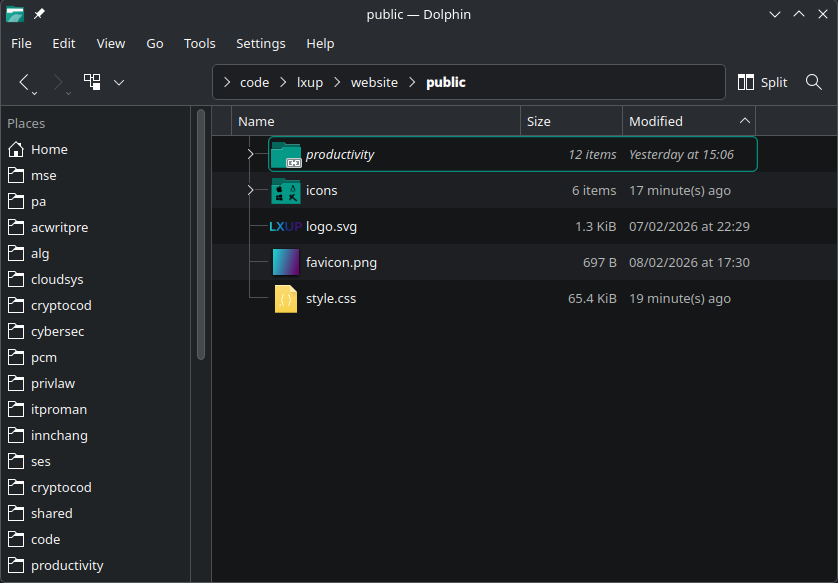
Most of the actions in a GUI require the mouse, or the keyboard and mouse combinations. You want to sort by size, modified date, name ? There is no shortcut. Want to go quickly to your Downloads to pick the latest file ? You scroll into the quick access at left to find Downloads and you click on the column title to sort by creation date...
Some action like search (ctrl+f), deletion, cut, copy, paste are common enough to have shortcuts attributed. Complex selections cannot be achieved without the mouse (selecting file a, d and e, in the list of a, b, c, d and e).
Terminal usage
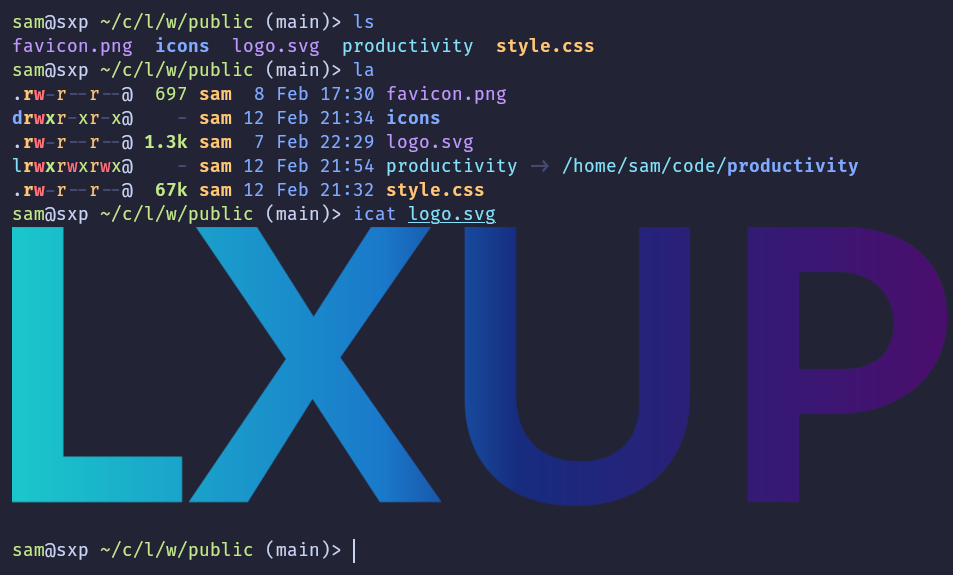
Browsing and managing files in the terminal means using commands like ls, grep, mkdir, rm, ...
As every action is a full command in itself, you have to type a lot to move around, display file content, see file details. Some basic actions like sorting, calculating folder sizes, searching files, opening binary files, require more knowledge and longer commands. Think about ls -la --sort time, du -sh *, fd -e md | grep -i sye, xdg-open report.pdf.
The amount of information visible is by low by default, you just see the current folder in the prompt, it's up to you to type commands to list files, see files in subfolders, change current directory... Searching for a file manually usually means cd here, ls, cd there, ls, ls -la, cd maybethere, ls, cd .., cd itwashereactually, ls, cat info.txt...
File browsers in IDE
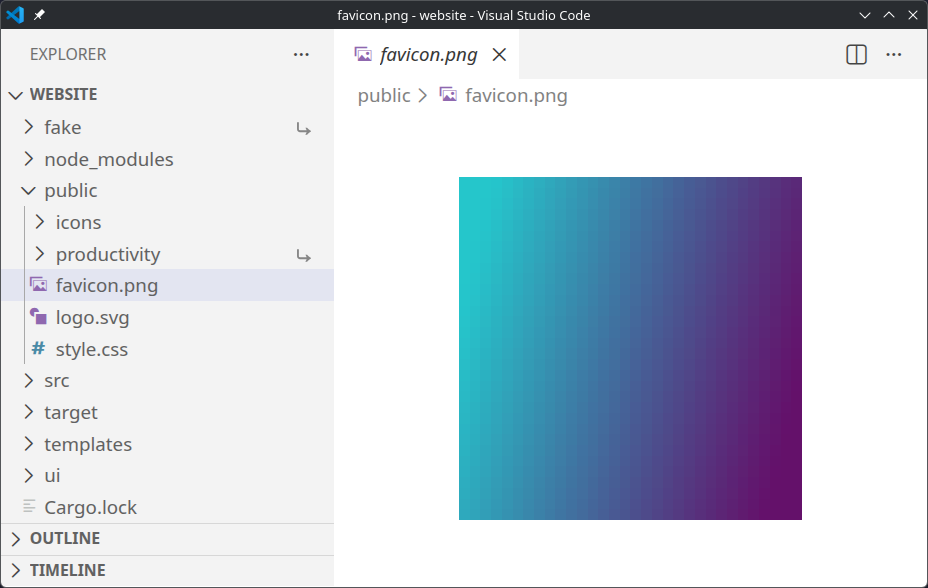
IDE browsers are similar to standards file browsers GUI. They are often tree-based and displayed on a small vertical zone at left. Looking at files with very deep folders toggled can be challenging, because the list of files become long to scroll.
TUIs
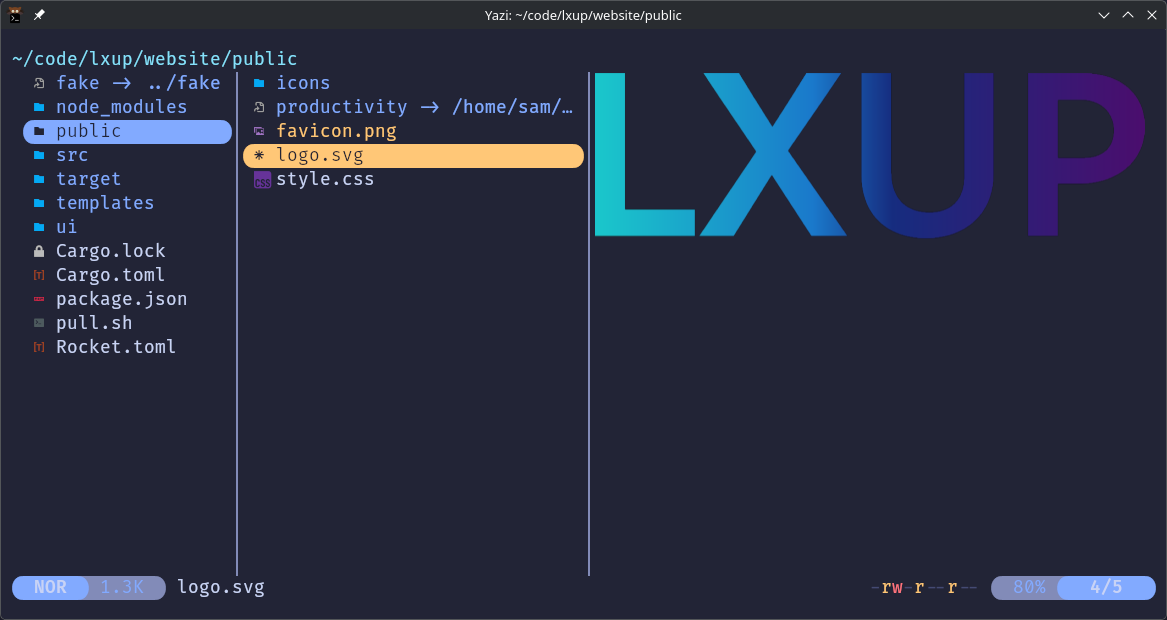
Terminal User Interface (TUI) are the middle ground between GUI and CLI. A fullscreen interface in the terminal. Some are showing minimal information like pagers more, less. Some are very advanced like file browsers, Git managers, or even Spotify clients !
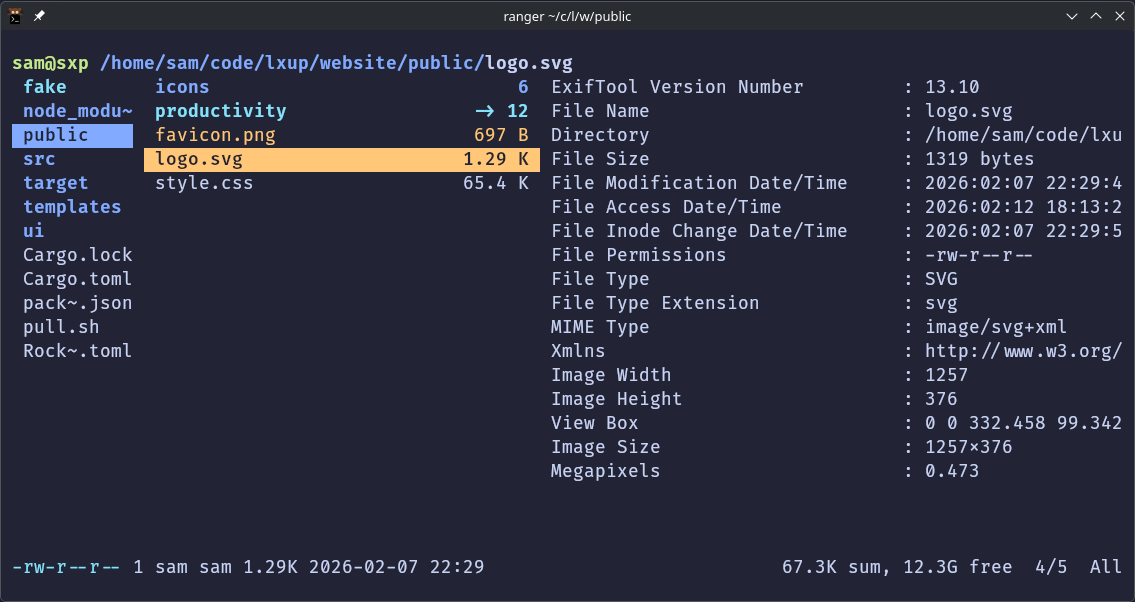
TODO finish the pitch !