
Access documentation
Learning to use options from ls, mkdir and other basic commands require you to discover, understand and try out the vary large set of options. You may know ls -la but did you know its flag --sort time ?
Man pages
Manual pages is the best way to discover them in details. They can be access with the man CLI.
Simply type man ls to discover its page, here is a short extract of the top of the page.
LS(1)                            User Commands                          LS(1)
NAME
    ls - list directory contents
SYNOPSIS
    ls [OPTION]... [FILE]...
DESCRIPTION
    List  information  about  the FILEs (the current directory by default).
    Sort entries alphabetically if none of -cftuvSUX nor --sort is specified.

    Mandatory arguments to long options are mandatory for short options too.
    -a, --all
        do not ignore entries starting with .
    -A, --almost-all
        do not list implied . and ..
    --author
        with -l, print the author of each file
    -b, --escape
        print C-style escapes for nongraphic characters
...
Man pages with colors
You can customize the look of man pages and more importantly, add colors generated via bat. This is an alternative to cat that can colorize lots of file formats, including man pages and code snippets inside. This requires installing bat (for Fedora sudo dnf install -y bat).
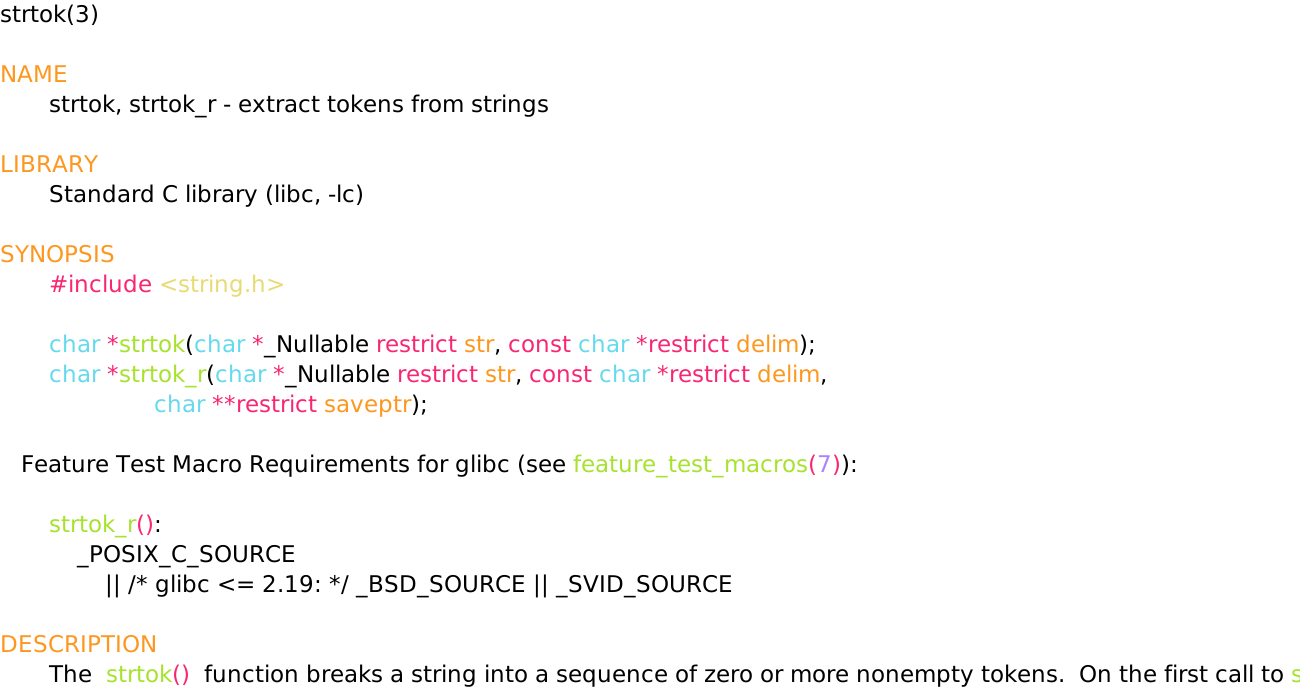
To get this result, save this snippet in your shell configuration.
# Add colors to man page ! Use bat as pager.
export MANPAGER="sh -c 'col -bx | bat -l man -p'"
export GROFF_NO_SGR=1
You can try other highlighting themes of bat, see the list in bat --list-themes and choose with --theme="theme name here".
Man pages quick access in VSCode
You can easily visit man pages with a few colors with this extension
code --install-extension meronz.manpages
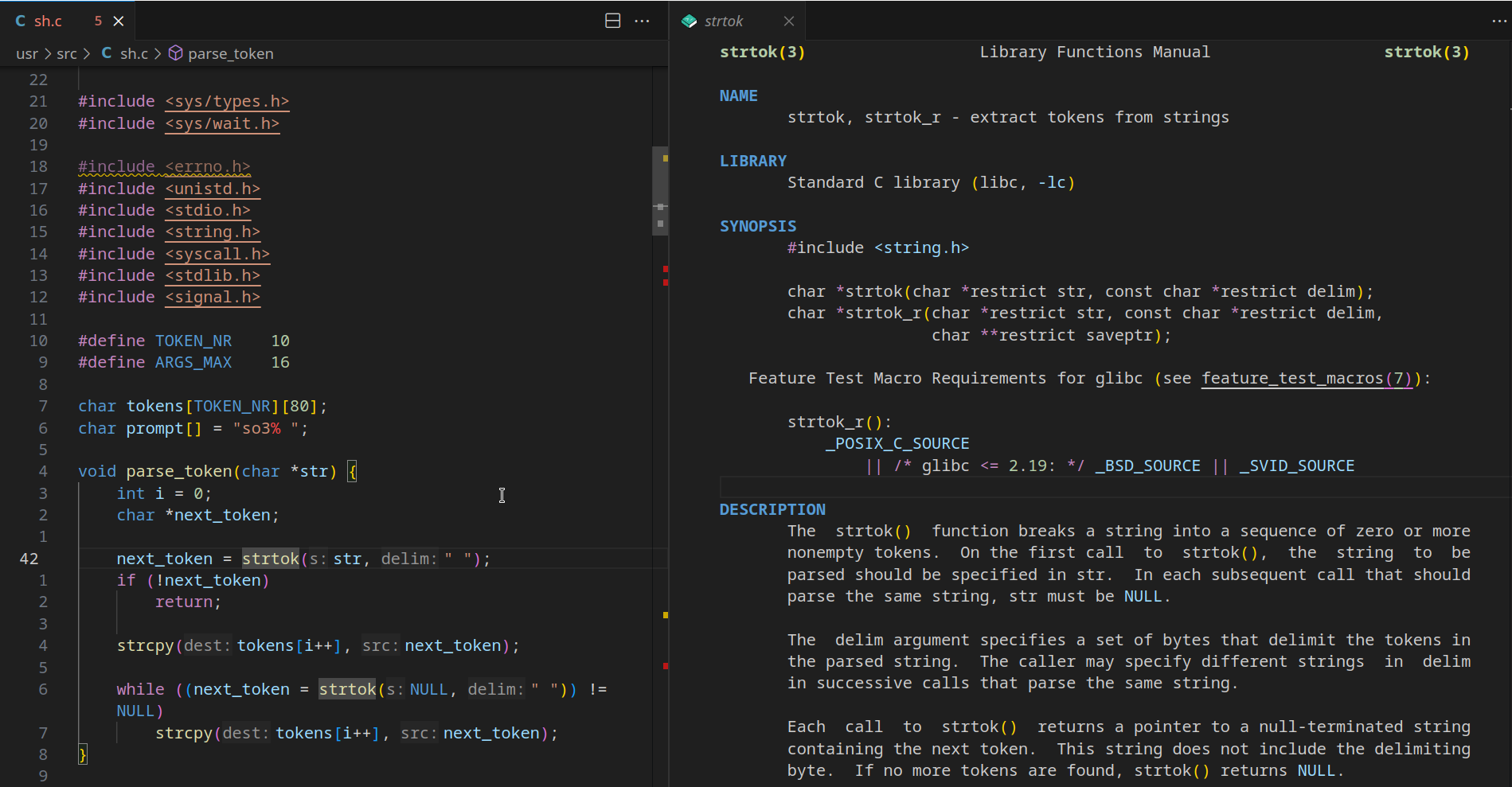
The 3 useful actions:
- (Only from shortcut)
manpages.openFromCursor: With your cursor on a C function (let's sayprintf), runCtrl+6to open theprintfman pages on a split page. This actually works any keyword that has a manual page, you can also use this on commands inside a given script. - (Accessible via Command Palette >
Man: Open page)manpages.openFromInput: Same but opens a prompt to give the man page name - (Accessible via Command Palette >
Man: Search (apropos))manpages.searchFromInput: Same but opens a prompt to search across all man pages for a given keyword in name or short description
Here a snippet to insert in keybindings.json to quickly change the first shortcut to something else if you don't like the default ones.
{
    "key": "ctrl+shift+m",
    "command": "manpages.openFromCursor"
},
A more complex solution if you want to access all actions
I'm really not a fan of my choices, just adapt the shortcuts to something that makes more sense and tell me if you find something logical !
{
    "key": "ctrl+shift+m c",
    "command": "manpages.openFromCursor"
},
{
    "key": "ctrl+shift+m i",
    "command": "manpages.openFromInput"
},
{
    "key": "ctrl+shift+m s",
    "command": "manpages.searchFromInput"
},
TLDR - quick access to useful examples
tldr is a CLI inspired by the TLDR acronym (Too Long; Didn't Read). Instead of reading very long list of options in man pages, you can learn from common use cases.
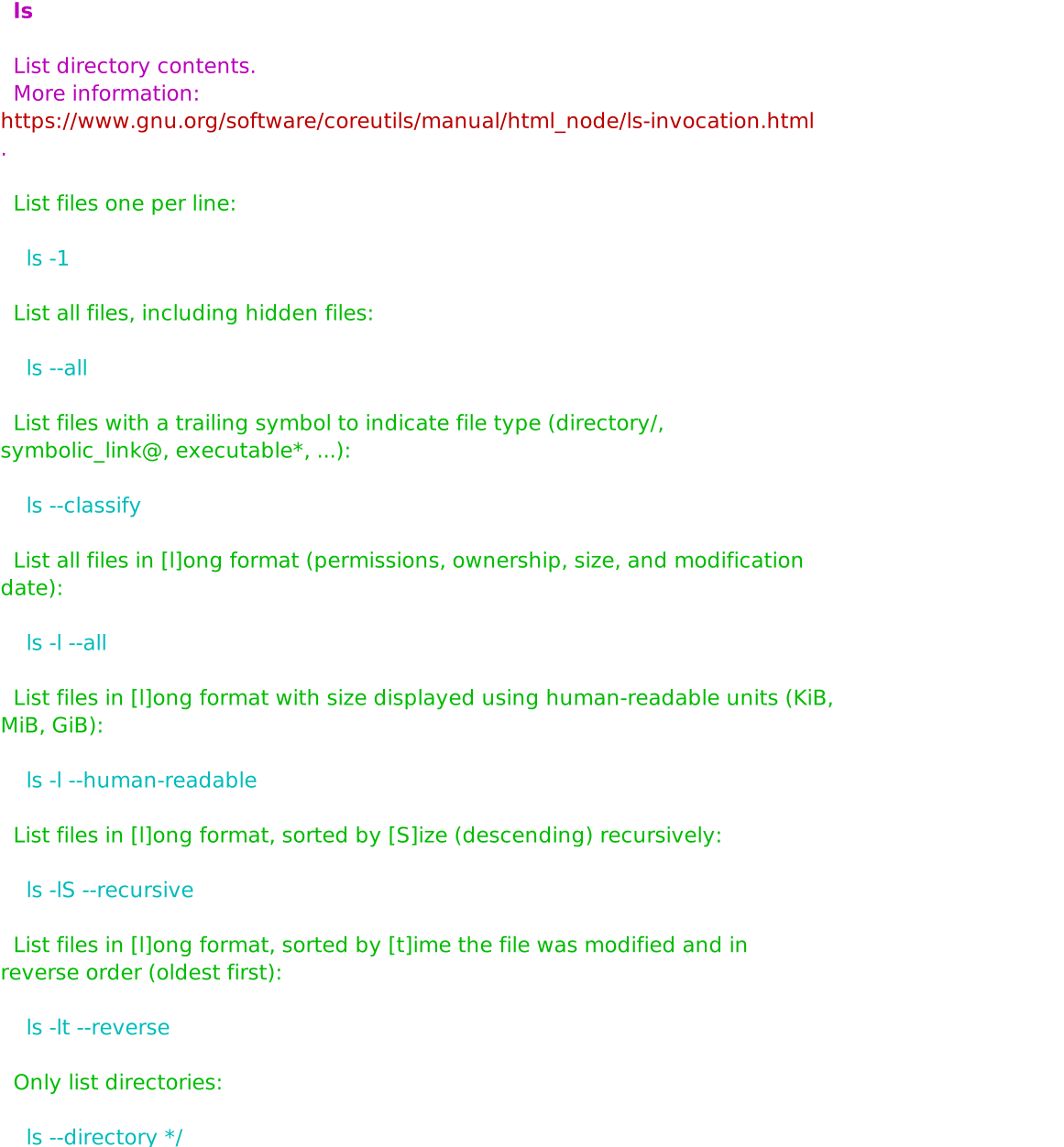
ls by running tldr ls- Install the TLRC (TLDR Rust Client)
- Instead of
man ls, typetldr ls.
TLDR has pages for most common commands and way beyond coreutils. You can try out tdlr cargo, tldr fd, tldr yt-dlp...