Introduction
You have a concept in your head, but you are struggling to explain it to others? You are brainstorming with your family on how to organize your living room or the garden? You want to create a quick map of your district to represent where to plant trees? Do you think about the user interface for your next software?
If you are not satisfied with the look of your handwriting, you may hesitate to draw quick schemas on papers. You know how much schemas are effective, but you don't have the reflex to start one, because you don't know any simple tool at hand. Maybe you don't like drawing on papers because you lose your sheets all the time.
This is where Excalidraw comes in! This minimalist diagramming tool allows you to quickly draw various schemas to express your mental models.
Demo
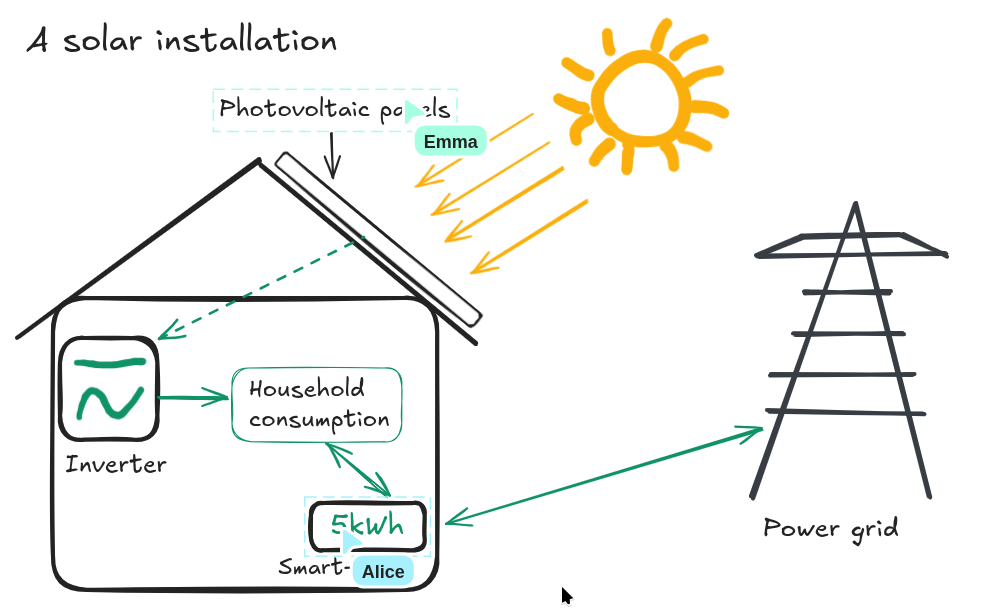
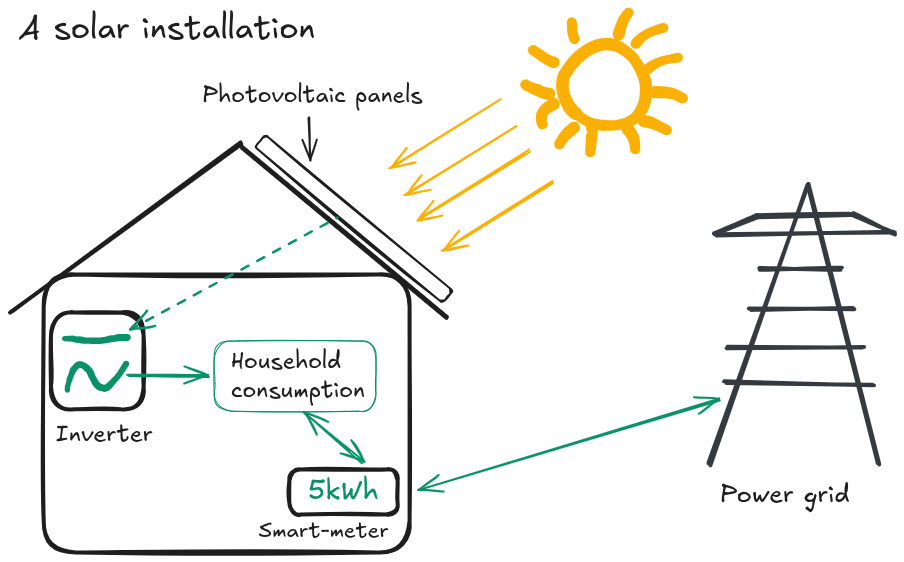
Let's say we want to explain the architecture of a traditional solar installation at home.
You have the sun hitting the photovoltaic panels, that produce electricity sent to the inverter, which converts DC into AC. The home is connected to the inverter and can use the solar energy directly. The additional energy is sent to the power grid, going through the smart-meter. This other device is responsible for counting the household consumption. When there is not enough sun, the energy is taken directly from the power grid, going through the smart-meter as well.
Otherwise, we could show this schema demonstrating the whole process, allowing us to have a shorter and clearer description.
Setup
Excalidraw can be used online at excalidraw.com. Once you are done with your schema, you can save with Menu > Save to (to define the filename) or hit Ctrl+S.
Once you save the document, it will download a file named like Untitled-2026-03-07-1445.excalidraw. This will create a copy each time you save. You can reimport this copy later in the browser to edit it.
An easier solution to save the schema is described on the next page if this is too annoying.
Usage
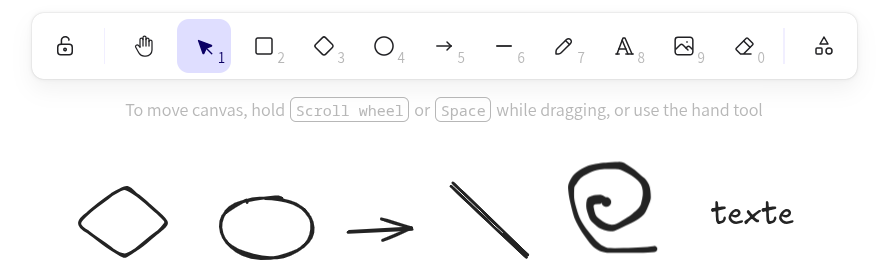
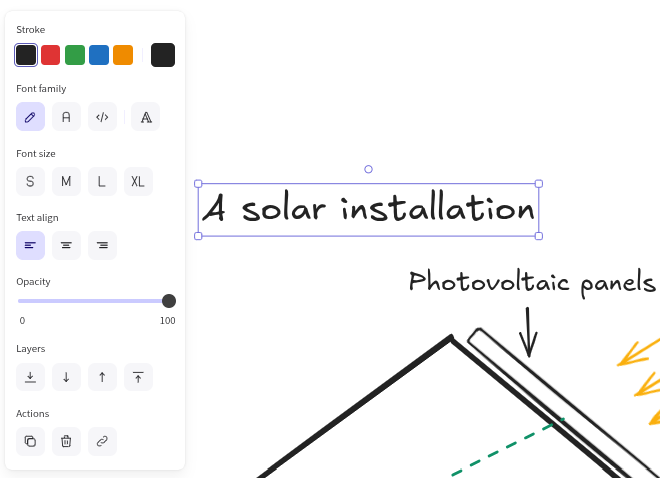
Excalidraw is very minimalist, but still powerful enough. This makes it easy to learn and create your first diagrams. If you need to create more complex diagrams with regular polygons, triangles, with exact dimensions, Excalidraw might be too restricted for that. Look at DrawIO otherwise.

Collaboration
The collaboration aspect is VERY useful when you want to brainstorm or create diagrams in a group. The simple tool becomes a support for creative work.
Just click on the Share button at the top right, start a session, and share the link to the group.

You can see the cursor, selections, and modifications in real time of connected people.