
Setup Git
To be able to clone, commit, push and pull Git repositories, you need to install and configure Git, which needs to have SSH authenticated setup to be able to connect with your account one of the Git forges in GitHub and Codeberg.
Git
Install Git
For Fedora
sudo dnf install -y git
On Windows in admin powershell
winget install -e --id Git.Git
On MacOS
brew install git
For Ubuntu and derivatives
sudo apt update && sudo apt install git
That's it ! Package managers are easy right ?
Configure the Git identity
Git needs to attribute an author to each commit. It needs an email address and a name. This can be configure these settings locally per project (the default) or globally (for all projects, notice the --global in the next commands).
If you have multiple Software forges accounts (like on GitHub and Codeberg at the same time), here is trick: you can configure the global identity with your most used account and configure other repositories locally with the other account.
- Your name: Find the name assigned to your GitHub/Codeberg profile. If you don't have one, this is just your username.
- Your email: As your commits are public, you have to choose an email that you are okay being public ! If you don't have this kind of email, you can use the noreply address provided by the forge.
You'll have to type these two commands for your forge, after having chosen on the presence of --global, replaced your name and email.
Example for GitHub.
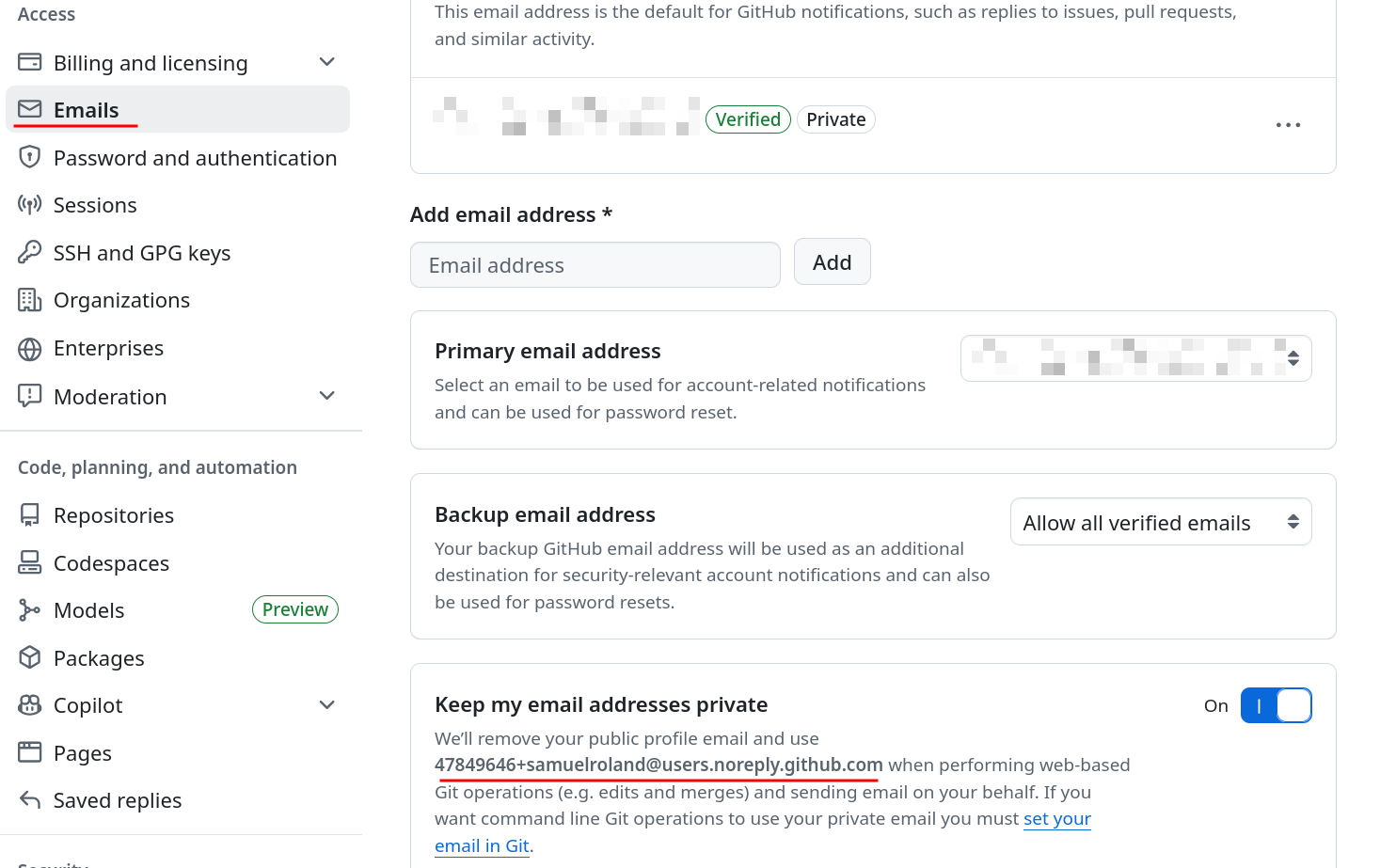
git config --global user.name "Samuel Roland"
git config --global user.email 47849646+samuelroland@users.noreply.github.com
Example for Codeberg.
git config --global user.name "Samuel Roland"
git config --global user.email samuelroland@noreply.codeberg.org
To make sure it works, you can check the global configuration file for Git. It should contains the 2 entries name and email with the values you just defined.
> cat ~/.gitconfig
[user]
	email = 47849646+samuelroland@users.noreply.github.com
	name = Samuel Roland
SSH
Check if you have existing SSH pair
On Linux and MacOS, go checkout
cd ~/.ssh
ls
On Windows
cd %USERPROFILE%\.ssh
ls
If you have an existing pair you can skip the next section.
Generate a new SSH keypair
You have to generate a new SSH key pair with the command ssh-keygen -t ed25519. Leave the default path to store the key (here in /home/sam/.ssh/id_ed25519). You can define a passphrase or not, as you wish.
See example
> ssh-keygen -t ed25519
Generating public/private ed25519 key pair.
Enter file in which to save the key (/home/sam/.ssh/id_ed25519):
Created directory '/home/sam/.ssh'.
Enter passphrase for "/home/sam/.ssh/id_ed25519" (empty for no passphrase):
Enter same passphrase again:
Your identification has been saved in /home/sam/.ssh/id_ed25519
Your public key has been saved in /home/sam/.ssh/id_ed25519.pub
The key fingerprint is:
SHA256:wxTNDsNImCcZ/mS3GHPTUx5pmCbMMi0UU4Utm8dBYCA sam@sxp
The key's randomart image is:
+--[ED25519 256]--+
|    EB*X=Oooo.   |
|   .=.*o@oOoo.   |
|    .o=+=@oo.    |
|     + Ooo+.     |
|      o S.       |
|         .       |
|                 |
|                 |
|                 |
+----[SHA256]-----+
Add your SSH keys to the Git server
When you'll do git push, the Git server needs to know who is the connected user. You can inform the server to link your account with a public key.
You can display the public key with cat (choose the file ending with .pub)
cat ~/.ssh/id_ed25519.pub
and copy the full content and go create a new SSH key in your settings for your Git server.
- On GitHub: https://github.com/settings/keys
- On GitLab: https://gitlab.com/-/user_settings/ssh_keys
- On Codeberg: https://codeberg.org/user/settings/keys
Verify SSH connection
Once that's done, you can verify the connection is working with the following command.
> ssh -T git@github.com
Hi samuelroland! You've successfully authenticated, but GitHub does not provide shell access.
> ssh -T git@codeberg.org
Hi there, samuelroland! You've successfully authenticated with the key named sam@sxp, but Forgejo does not provide shell access.
If this is unexpected, please log in with password and setup Forgejo under another user.
You should then see your pseudo and this kind of message. Before this you may see the verification of the public key's fingerprint. You can go on this page of the GitHub docs about GitHub's SSH key fingerprints to verify it does matches to one of the entries.
To easily compare the long strings, I recommend you to copy the string from your terminal, and paste that in your browser in the ctrl+f search bar. It there is match, it will be highlighted and you didn't needed to compare a dozens chars by hand...