
Setup
Install the setup
Fedora & Ubuntu
The setup has been automated with lxup and is taking 5-10minutes to run
lxup play base
lxup play sye
[!WARNING] If you already opened VSCode, you must close and reopen via
code .to let it reload this variable. Otherwise you might also get the same error as above.
Other OS
Checkout others page to find some hints.
Debug setup
Here is a preview of the debug of sh.c.
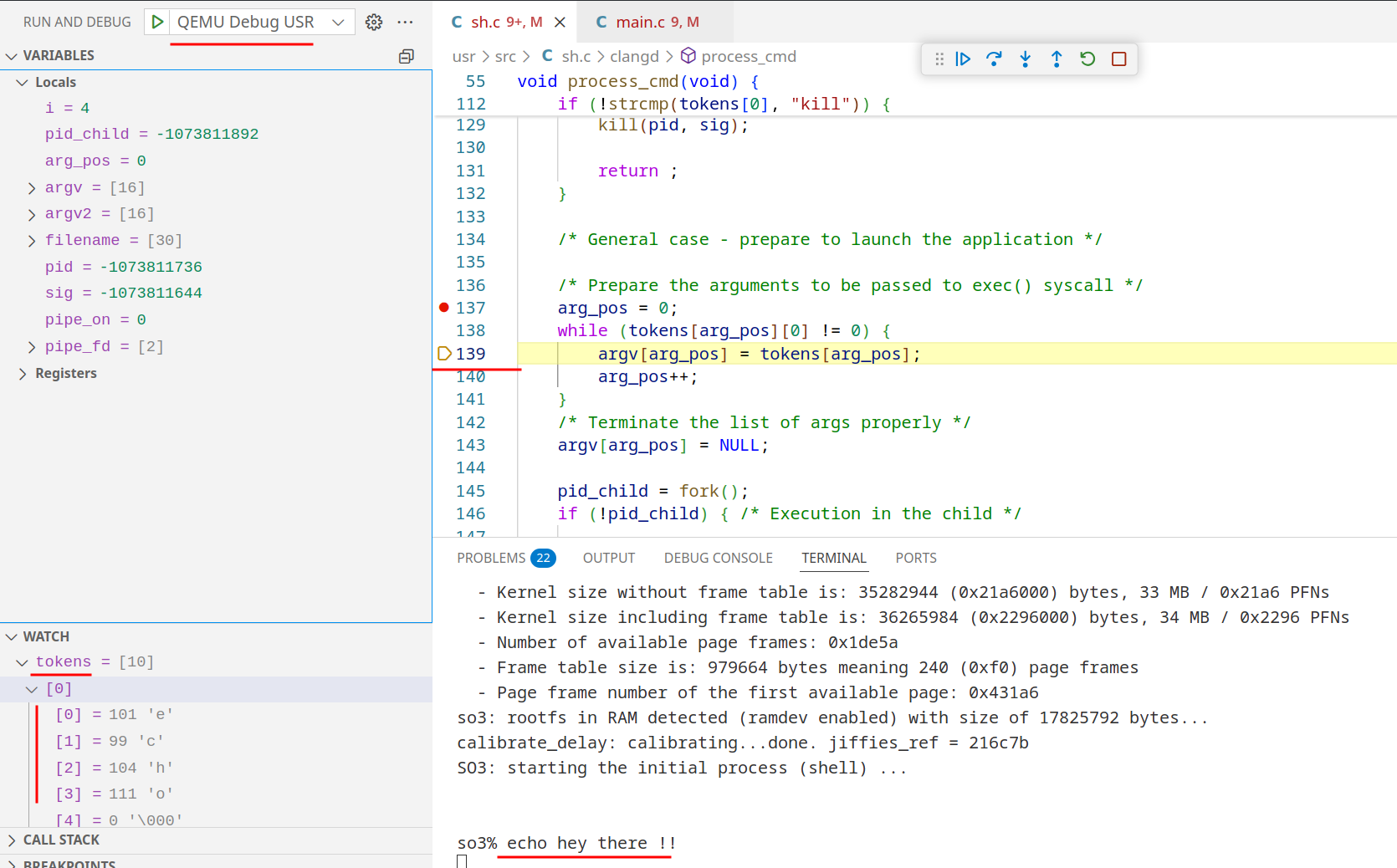
The LXUP setup installs everything. To validate it is working (that's the subject of the second lab)
- You can put a break point in
usr/src/sh.c(i.e. line 198, atif (strcmp(user_input, ""))) - And select and start the
QEMU Debug USRdebug task. This option is in the Debug panel at left and you can start with F5 once selected. - Enter your sudo password under VSCode's
Terminaltab - And type a command like
ls - You should see the program stop at your breakpoint.
- You can then stop the debugging and close the temporary terminal window
- You can also try to put a breakpoint in
so3/kernel/main.cto verify the other debug taskQEMU Debug SO3.
[!WARNING] Make sure you are on the correct debug task. If you have breakpoints in
usr/src/sh.cand you have selected the wrong taskQEMU Debug SO3, the breakpoint will be ignored !
Note: the following warning is expected: The task 'QEMU-SO3' has not exited and doesn't have a 'problemMatcher' defined. Make sure to define a problem matcher for watch tasks.. Just click on Remember my choice for this task and Debug Anyway.
If you are on Fedora and you have this issue, this is because gdb-multiarch doesn't exist on Fedora and this is defined in .vscode/launch.json . You have to manually change the 2 occurences of gdb-multiarch by just gdb.
Unable to start debugging. Launch options string provided by the project system is invalid.
Unable to determine path to debugger. Please specify the "MiDebuggerPath" option.
Or if the value is "miDebuggerPath": "/opt/toolchains/arm-linux-gnueabihf_6.4.1/bin/arm-linux-gnueabihf-gdb",, you have the old SYE repository (before 2025) and you need to change the value by gdb (Fedora) or gdb-multiarch (Ubuntu).
Troubleshooting
Usage
Clone your repos
You obviously need your repository sye_<lastname>_<firstname> with SO3. Refer to labs instruction for this. If you don't have a repository with SO3 yet, you can clone the upstream repository "just for validating this setup": git clone https://reds-gitlab.heig-vd.ch/reds-public/sye25
Build and run SO3
As explained in labo instructions, at the root of the repos you can run make to build everything and use ./st to start SO3 manually.
Remind me the commands
Run once (or everytime you have a clean repos)
make init
make
To go faster, you can tell make to use multiple threads (10 here).
make -j 10
I don't understand the details of why, but it seems that running this at the very first compilation (or after make clean), doesn't end with Compilation done on the last line. But following executions with this acceleration seems to work properly...
You can clean some of the build files with
make clean
As a reminder, launching SO3 in Qemu is made with the script st:
./st
But this is painful to build... wait ... then run it and wait... Go check out the next section
Tricks for labs and exos
Git and VSCode extensions
You need to follow any installations instructions from lab 1 PDF: to setup Gitlab SSH key.
For VSCode, you need at least the 3 following extensions
C/C++, from Microsoft (the one recommended in the first lab's PDF)clangd, necessary to have full errors shown, the first extension is not able to properly report them...Error Lens, show all errors in colors on the same line, removing the need to hover the error with your mouse to see the message
Commands for native Linux
code --install-extension ms-vscode.cpptools
code --install-extension llvm-vs-code-extensions.vscode-clangd
code --install-extension usernamehw.errorlens
On WSL Fedora
It's important to open VSCode and connect to WSL, you should have at the bottom left WSL: Fedora, if not click on it and choose WSL.
Make sure to install the extensions on WSL as well, the above command only install that on Windows which is not enough !
code --install-extension ms-vscode-remote.remote-wsl # Install the WSL extension on Windows to be able to connect into WSL

# Install the other extensions in WSL
code --remote wsl+Fedora --install-extension ms-vscode.cpptools
code --remote wsl+Fedora --install-extension llvm-vs-code-extensions.vscode-clangd
code --remote wsl+Fedora --install-extension usernamehw.errorlens
On WSL Ubuntu
It's important to open VSCode and connect to WSL, you should have at the bottom left WSL: Ubuntu, if not click on it and choose WSL.
Make sure to install the extensions on WSL as well, the above command only install that on Windows which is not enough !
code --install-extension ms-vscode-remote.remote-wsl # Install the WSL extension on Windows to be able to connect into WSL

# Install the other extensions in WSL
code --remote wsl+Ubuntu --install-extension ms-vscode.cpptools
code --remote wsl+Ubuntu --install-extension llvm-vs-code-extensions.vscode-clangd
code --remote wsl+Ubuntu --install-extension usernamehw.errorlens