KDE Plasma setup
Here is a few tips that I personally use when I setup KDE Plasma on a fresh installation. This is
You might have a different taste, but it gives you a small view on how much can be configured in KDE Plasma. This could also be seem as a quick start guide, before you'll spend more time in the settings to customize to your taste.
Bottom panel
This panel list all opened or pinned applications, in additions to a OS features information, such as Wifi state, bluetooth, battery level, sound, clipboard...
Changing the panel style
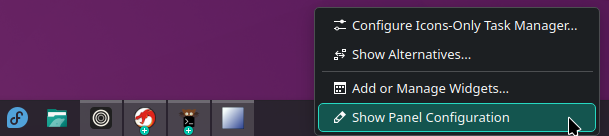
You can right click on the panel to access this option.
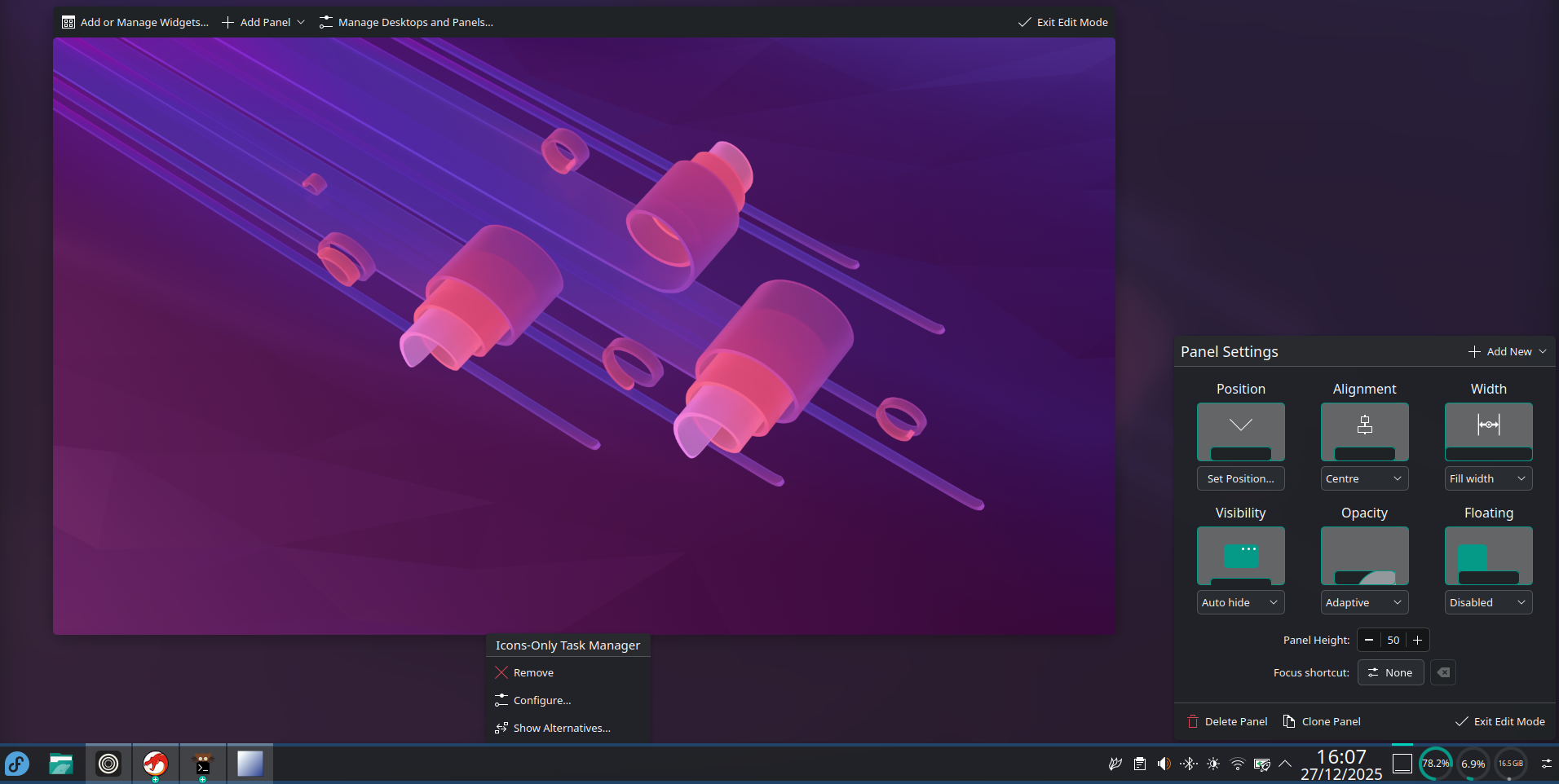
At the right, you'll have a few options to change the look. I choose "Auto hide", a smaller size of 36, and disable Floating.
Adding custom widgets
I'm regularly checking the CPU usage, the RAM usage and the disk usage. Instead of opening htop or lsblk -fm all the time to do it, I really like having pie charts directly displayed in this panel.
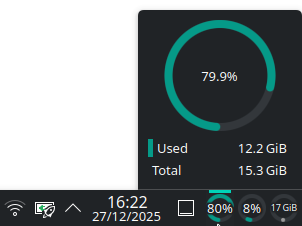
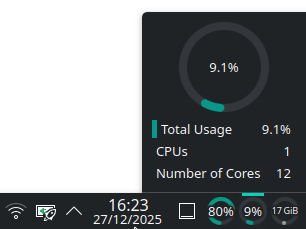
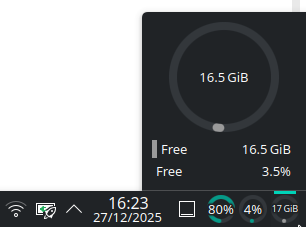
Again, you can right click on the panel to access this option. There is a big list of widgets to add.
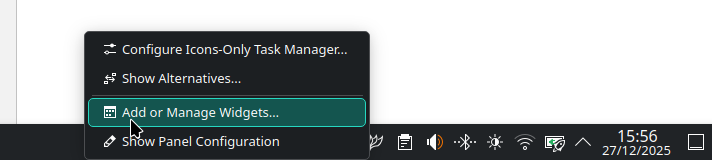
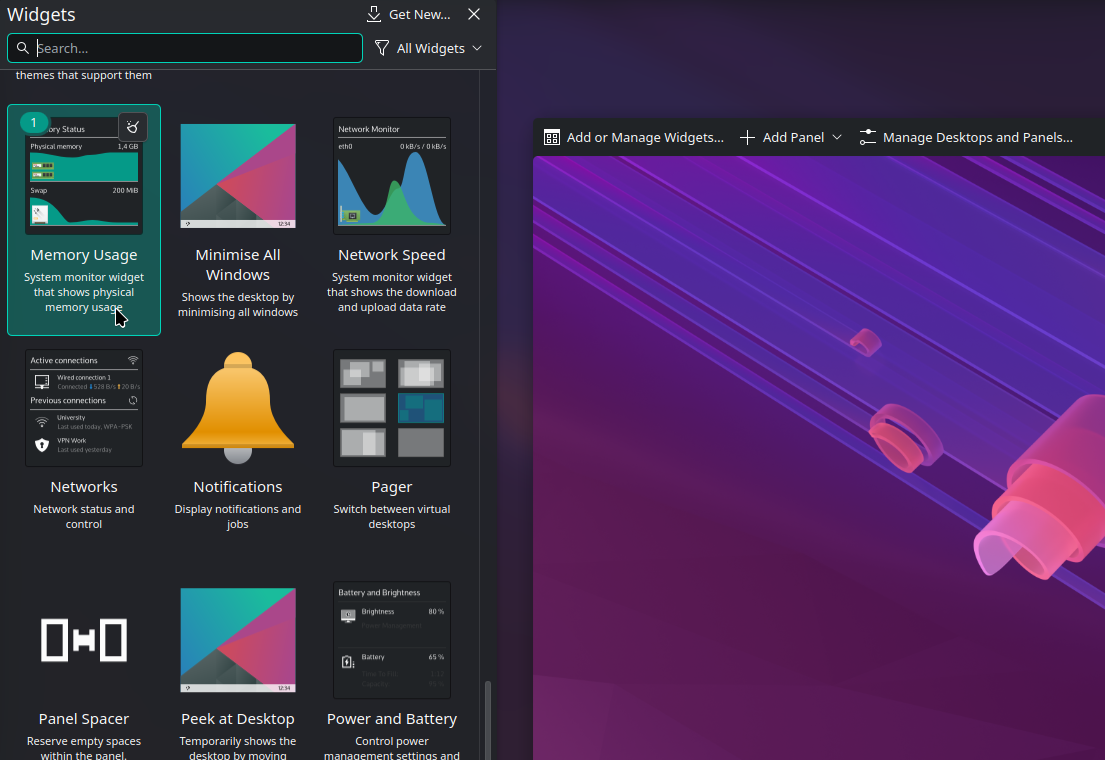
If you want to customize the appearance of a given widget, right click on it and choose "Configure ...".
To show the free space bytes instead of the total usage in percent, I had to configure this Disk space widget like this. It's important to precise the disk you want to include (here it is named fedora_sxp).
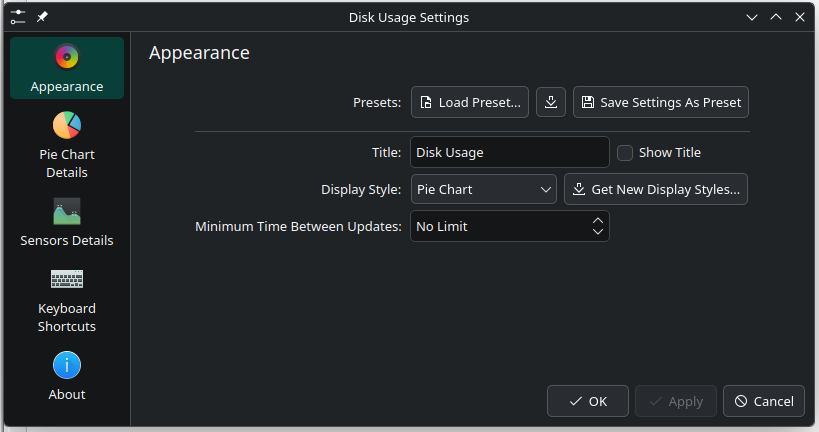
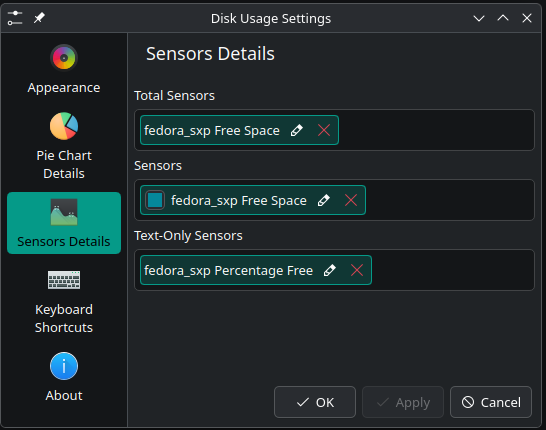
Note: widgets can be resized by clicking on their border :)
Global shortcuts
It is possible to have global shortcuts such as Meta+k to open your terminal. If you have a few apps or commands you frequently need to run, this is VERY useful !
Under System Settings -> Keyboard -> Shortcuts -> Add New -> Command or Script... -> Give the command, given an arbitrary name useful to yourself -> Add -> and assign a shortcut.
Shortcuts I personally use
Meta+kto open Kitty (just the commandkitty)Meta+sto openflameshot guiMeta+dto opendmeMeta+oto openop(a Fish function to quickly open an important course file)
Hide windows from screen recordings
Note: this only works from Plasma 6.6 released on February 2026
Note 2: These configuration will also hide windows from screenshots
When you are sharing your screen on Telegram, Signal, Jitsi, or recording it with OBS, you at risk of showing sensitive applications to other people. Think about your emails, password manager or anything that should not only be visible to you. The default way to avoid to work around this issue is to screenshare only one window. You probably experienced that it gets messy when you also wish to show another one... What if you could share the whole screen, except the sensitive windows ?
This is possible to configure directly with a right-click on the top border, like this example with Signal.
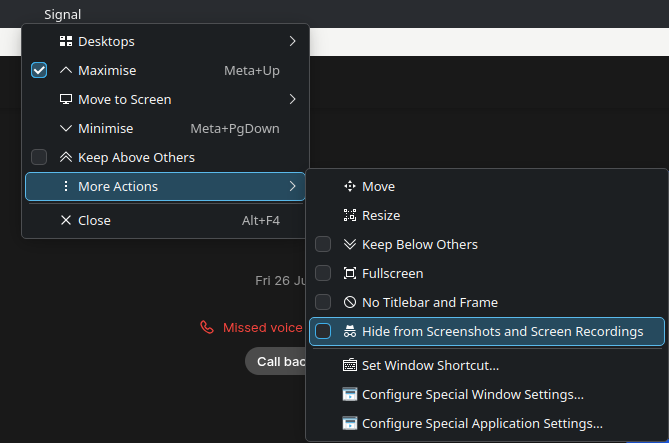
This option will be reset to its default value on the application restart. To make it persistent, click on Configure Special Application Settings... to access and configure this rule to be defined as Yes by default.
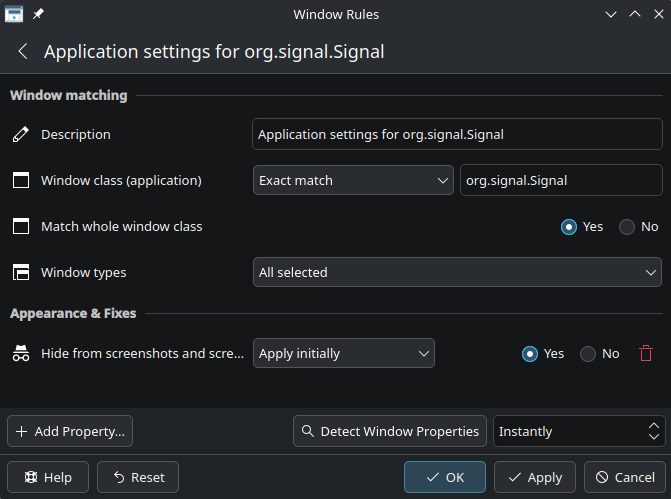
You'll have to restart once the configured application to notice the change.
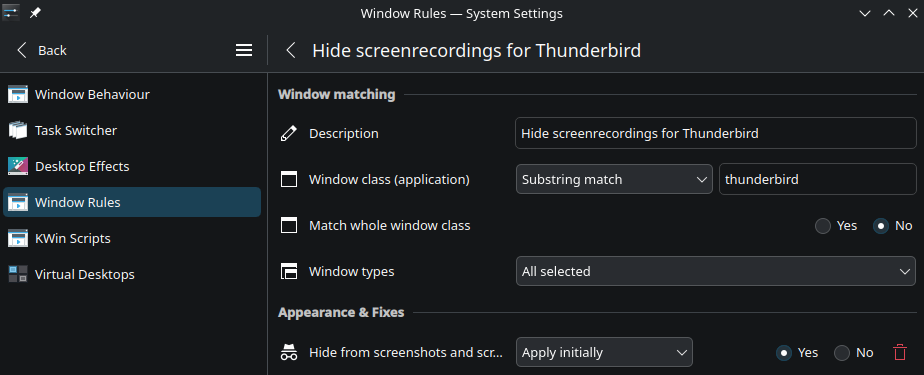
If your application doesn't have a top border to access the previous menu, just open Windows Rules in your System Settings application. You can create a new rule, choose a title, define a Substring match to make sure it will match the correct application, and change the appearance rule as previously.