
Labs
Get starting code for labs
Instead of retrieve_lab asm lab01 run labget asm lab01. This is just a slightly better reimplementation, that can be used exactly the same way: retrieve_lab asm lab05 -> labget asm lab05. If you don't already have it: lxup get labget Help: I don't have lxup !
Use toolchains specific tools
If you want to use the GCC of the ARM toolchain, you must type arm-linux-gnueabihf-gcc not just gcc. This refers to /opt/toolchains/arm-gnu-toolchain-11.3.rel1-x86_64-arm-none-linux-gnueabihf/bin/arm-linux-gnueabihf-gcc. Same idea for the x86 toolchain: i686-linux-gcc which corresponds to /opt/toolchains/i686-linux_6.4.0/bin/i686-linux-gcc.
Lab 1 - Easier execution for native code
During the first lab, you might have some normal C code like exo1.c, exo2.c, ... As it runs natively on Linux without Qemu, you can use Runox (the r command.). With the Makefile detected, r will call make, find all executable files and prompt you to pick one to launch.
Here is small example on the first lab.
> r
>>> Building with 'make'
gcc -g -I include -c exo1.c
gcc -g -I include -c exo2.c
gcc -g -I include -c exo3.c
gcc -O0 -g -I include -c exo4.c -o exo4-debug.o
gcc -O3 -g -I include -c exo4.c -o exo4-optimized.o
gcc exo1.o test_leds.a -o exo1
gcc exo2.o test_leds.a -o exo2
gcc exo3.o test_leds.a -o exo3
gcc exo4-debug.o test_leds.a -o exo4-debug
gcc exo4-optimized.o test_leds.a -o exo4-optimized
>>> Running via 'cmr'
Multiple targets found, choose one or run again with a filter with any number of argument
./exo4-optimized
./exo4-debug
./exo3
./exo2
▌ ./exo1
5/5 ───────────────
# [Choosing exo2]
Running ./exo2
Erreur : Au moins une led n a pas ete inversee.
>
It is running cmr under the hood, so it can also filter the list of targets by the following arguments.
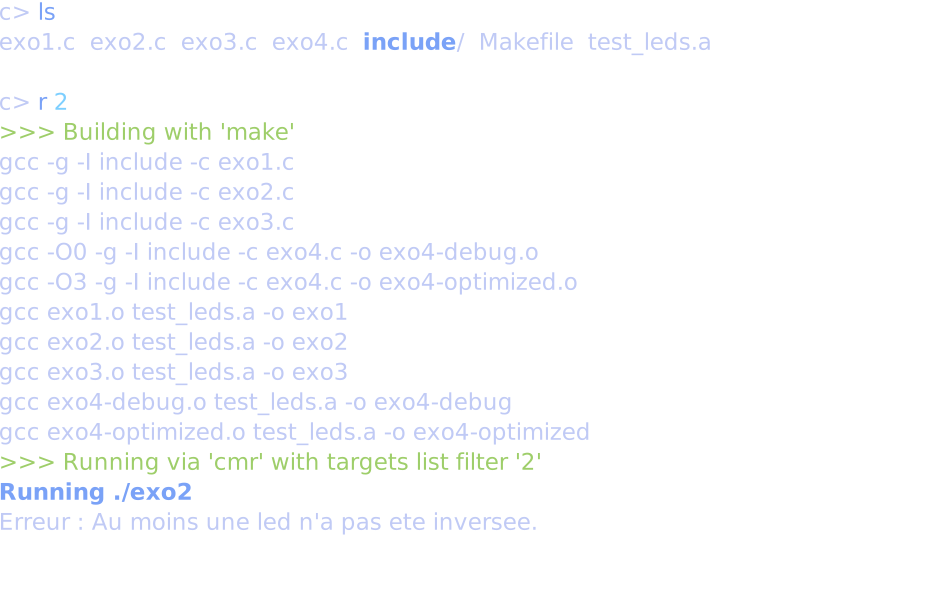
Another example where typing r 4 debug will be enough to differentiate the 2 binaries containing 4 (exo4-debug vs exo4-optimized).
> r 4 debug
make: Nothing to be done for 'all'.
Running ./exo4-debug
p[0] = 1
p[1] = 2
p[2] = 3
p[3] = 4
> r 4 opti
make: Nothing to be done for 'all'.
Running ./exo4-optimized
p[0] = 0
p[1] = 0
p[2] = 0
p[3] = 0
Lab 5 - Image processing
The problem: this lab requires a lot of manual steps to see the image result. You have to run make && ./build/image_processing by hand, look at the images, close image windows by hand or calling killall display... If the 2 images are overlapped, you have to drag one of them. This is tiring and there is a better way !
Runox also has a watch mode, which means it can restarts itself when a file is changed. To try it out, follow these steps:
cd x86/image_processing- Build + run the only target
image_processingevery time you change a code file:r -w - If you want to pass arguments to
image_processing, you can just give them after--. Here are 2 examples of simplifications.make && ./build/image_processing -f img/smaller_image.png->r -w -- -f img/smaller_image.pngmake && ./build/image_processing -s->r -w -- -s
How does it work ?
The watch mode works with entr. It watches any .c, .S or .h file.
As presented above, Runox works with Makefile by calling cmr under the hood. cmr v6+ expect first arguments to filter the list of targets: there are none here as there is nothing before --). After the -- it expect arguments to forward to the target.
Now there is still an issue with images showing up overlapped in the middle... To put them on the same position on your screen each time it restarts, you can define fixed positions to show them. Images are opened via the display command in image_processing.c, which supports a -geometry and -resize flag. Change these values as you want depending on your images.
Here is an example configuration to put them at the top right, one above the other.
- On line 126:
sprintf(cmd, "display -resize 400 -geometry -0+0 %s &", DIFF_FILE); - On line 136 (the value
-0+500means 0 from right (-), 500 from top)sprintf(cmd, "display -resize 400 -geometry -0+500 %s &", STUDENT_FILE);

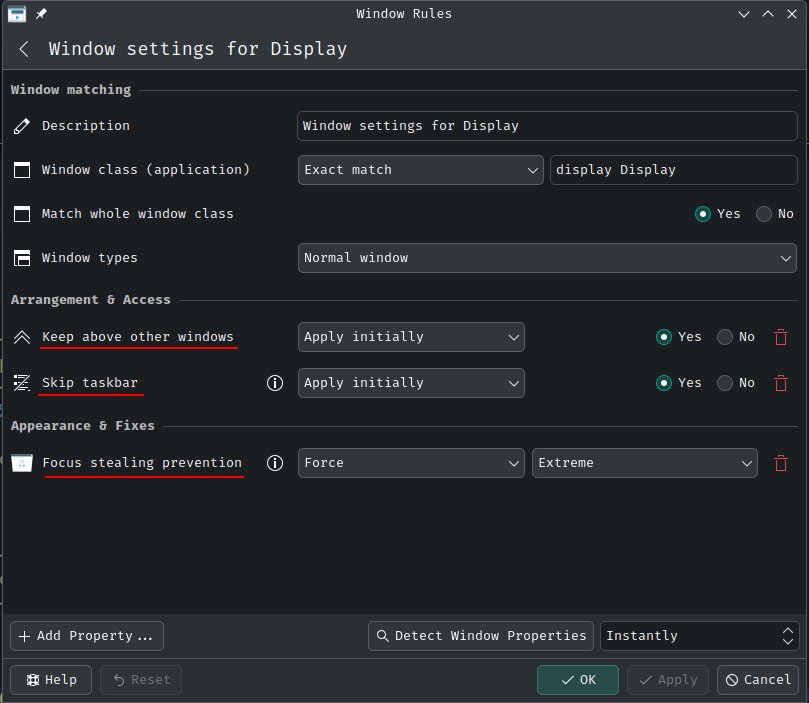
There are still minor issues, that we only know how to fix on KDE Plasma. Right click on the image window > Special Application settings... > and do the changes in the screenshot. These changes would allow to:
- Keep the 2 windows above all others so you can have your IDE in full screen
- Avoid the popups in the taskbar each time they are reopened
- Avoid getting focus on these windows to continue coding
I have no idea on how to do this on GNOME or other desktop environment sorry...