
Setup
On Fedora & Ubuntu
Install base and ASM tools via lxup, including Eclipse. Help: I don't have lxup !
lxup play base
lxup play asm
If you don't see any red output, you should have a fully working ASM! You'll learn how to use it in the next pages.
If it fails, try just running it again another time. If this still fails, send me a message on Teams (search for "Samuel Roland") and I will help you ASAP !
Note: If you have issues with the command clear not working anymore, this was fixed in the latest version of this automation. Just run it again once.
See setup components
This automation include
- A few DNF dependencies for labs
- Installing the CLI
asm.fish - The x86-i686 and ARM toolchain under
/opt/toolchainsfound in the VM/opt/toolchains/arm-gnu-toolchain-11.3.rel1-x86_64-arm-none-linux-gnueabihf//opt/toolchains/i686-linux_6.4.0
Note: If you are not using Fish as your default shell
Make sure these 2 bin folders are in your PATH
/opt/toolchains/arm-gnu-toolchain-11.3.rel1-x86_64-arm-none-linux-gnueabihf/arm-none-linux-gnueabihf//opt/toolchains/i686-linux_6.4.0/bin
On the REDS VM
You should not need to use the VM, except maybe on MacOS ARM...
If you really need it, here how to get the ASM CLI too.
Note: this setup was not tested for now and could fail...
- You already have a working build environment but you need to install the
lxupCLI - Then you can install all useful CLIs
lxup get labget asm r cmr - Install all missing dependencies for above CLIs
sudo apt update
sudo apt install -y gdb-multiarch gdbserver gcc-multilib seabios socat net-tools
sudo apt install -y fzf jq entr fd-find pipx
pipx ensurepath
fish -c "fish_add_path ~/.local/bin" || true
pipx install compiledb
You are good to go, but don't forget to enter fish before running asm commands.
Other Linux distributions
See the troubleshooting page for more details.
Manual post steps
Eclipse
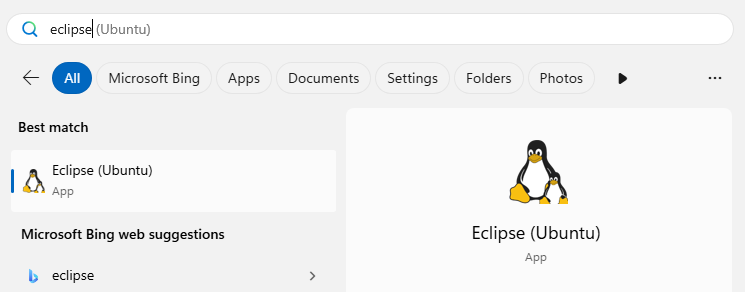
Even if you might not use it a lot in the course, make sure to finish setting up Eclipse. The above automation has installed it. It should be accessible via the eclipse command, and via your start menu (maybe only after a reboot). At worst, run it via snap run eclipse.
The plugin Eclipse C/C++ IDE CDT 11.6 (2024-06) need to be installed manually.
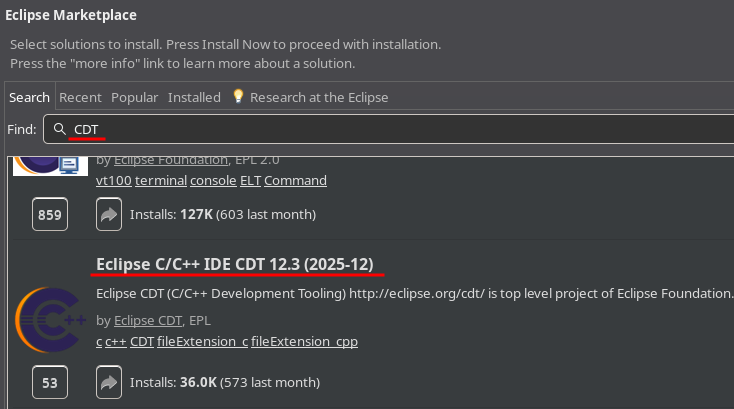
Go into Help > Eclipse Marketplace > type "CDT", click Install and follow the steps. It is not yet done, please wait on the progress bar at the right bottom...

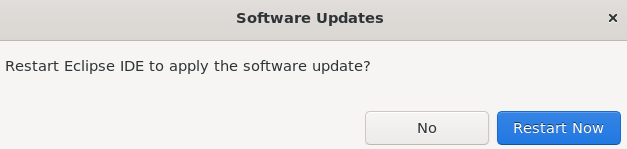
IMPORTANT: you have to wait around 15s to allow it to finish installing... Make sure to wait for this prompt to restart.
VSCode
Make sure you have these 3 extensions: cpptools (debug support for C), Clangd (language server) and Error lens (showing errors inline). The third one is optionnal but can really make your life easier.
Commands for native Linux
code --install-extension ms-vscode.cpptools
code --install-extension llvm-vs-code-extensions.vscode-clangd
code --install-extension usernamehw.errorlens
On WSL Fedora
It's important to open VSCode and connect to WSL, you should have at the bottom left WSL: Fedora, if not click on it and choose WSL.
Make sure to install the extensions on WSL as well, the above command only install that on Windows which is not enough !
code --install-extension ms-vscode-remote.remote-wsl # Install the WSL extension on Windows to be able to connect into WSL

# Install the other extensions in WSL
code --remote wsl+Fedora --install-extension ms-vscode.cpptools
code --remote wsl+Fedora --install-extension llvm-vs-code-extensions.vscode-clangd
code --remote wsl+Fedora --install-extension usernamehw.errorlens
On WSL Ubuntu
It's important to open VSCode and connect to WSL, you should have at the bottom left WSL: Ubuntu, if not click on it and choose WSL.
Make sure to install the extensions on WSL as well, the above command only install that on Windows which is not enough !
code --install-extension ms-vscode-remote.remote-wsl # Install the WSL extension on Windows to be able to connect into WSL

# Install the other extensions in WSL
code --remote wsl+Ubuntu --install-extension ms-vscode.cpptools
code --remote wsl+Ubuntu --install-extension llvm-vs-code-extensions.vscode-clangd
code --remote wsl+Ubuntu --install-extension usernamehw.errorlens
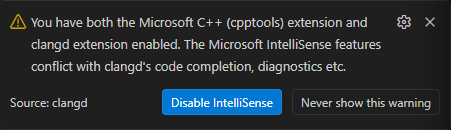
When you'll see this message, you can click Disable Intellisense to favor errors by Clangd.
Fix Windows terminal for WSL
The Windows terminal has defined some shortcuts like ctrl+c to copy text, which is disabling the Linux standard shortcut to stop a command. Because of the way Qemu needs to be stopped, you will miss this shortcut...
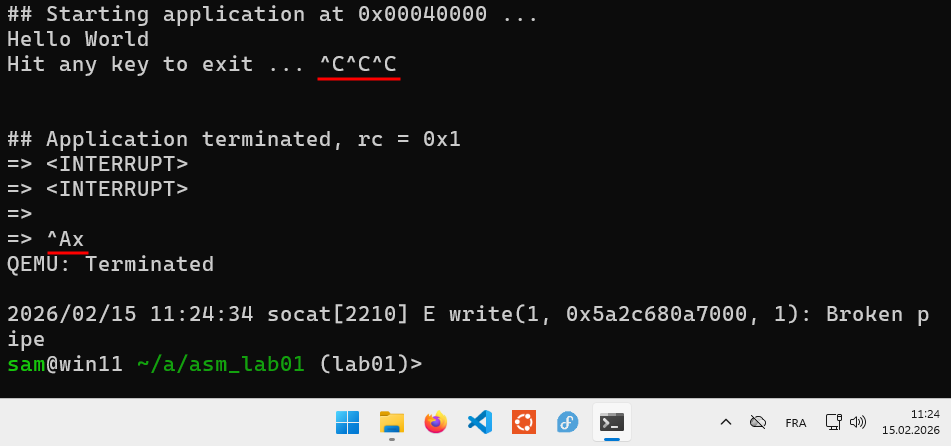
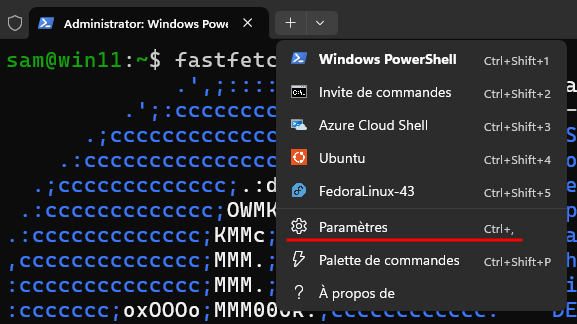
To fix that, go into the settings.
Go into Actions and scroll to look at Copy text.
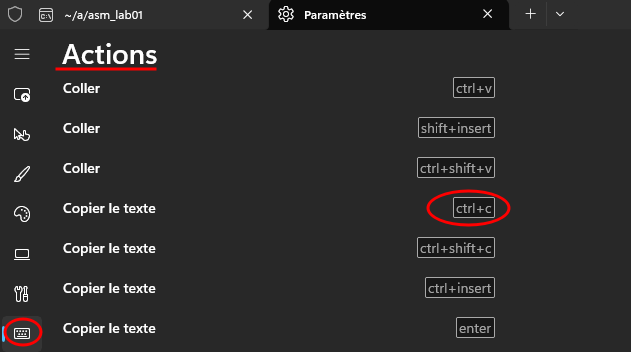
Just delete the shortcut mapped to ctrl+c.

You can continue to use ctrl+shift+c to copy the text.
Make sure to restart the terminal to see the effect !